

You launched the site. The homepage looks fine. The checkout works. But you still don't know which ad, page, or signup flow brings people in. That's the painful part of google analytics for beginners, you can feel busy and still be guessing.
I'd start with a simple mental model. GA4 is a logbook, not a static scorecard. Every click, view, and form action can land in the system as an event, which makes it easier to read what people do instead of staring at vanity traffic counts. If you want a clear companion while you set it up, I like Trackingplan's Google Analytics guide because it walks through the same beginner questions in a clean order.
The good news is that you don't need to master the whole product at once. You just need a live property, a working tag, a few clean events, and a dashboard you trust. That gets you from “I think traffic is up” to “this channel drives signups, that landing page leaks buyers, and this form needs work.”
Introduction
Google first introduced Google Analytics in November 2005 after it acquired Urchin Software Corporation, and later brought in Google Analytics 4 (GA4) as the newer version of the platform, with a shift from session-first tracking to event-based measurement Moz's beginner guide to Google Analytics. That history matters because the terms you see now, like users, sessions, pageviews, and events, come from a tool that has changed shape over nearly two decades Moz's beginner guide to Google Analytics.
For a founder, the actual problem usually isn't access. It's clarity. You might have traffic from paid ads, organic search, and direct visits, but you still can't tell which path led to a lead form, a signup, or a purchase. GA4 helps because it collects those actions in one place and lets you connect them to outcomes instead of gut feel.
The first win is simple. You want to see data flowing in Realtime, know your tag fires on every page, and trust that the numbers in your reports mean something. Once that part works, you can start asking better questions about product pages, ecommerce funnels, and early customer behavior.
Initial Setup Process
Start with the structure, because GA4 needs the right containers before it can collect anything. GA4 uses account, property, and data stream layers, and the Measurement ID ties the stream to the data you want to collect Semrush GA4 setup guide. To illustrate, consider a filing cabinet. The account is the cabinet, the property is the folder for one site or app, and the data stream is the pipe that sends actions into that folder.
Create the account and property
Open GA4, create an account, then create a property for the specific site you want to measure. Give the property a clear name that matches the website or brand. Pick the right reporting time zone and currency, because those settings affect how your reports read later.
After that, create a web data stream. That step gives you the Measurement ID, which links your site to the stream Semrush GA4 setup guide. I treat that ID like a shipping label. If the label is wrong, the package still moves, it just goes to the wrong place.
Turn on tracking and verify the flow
Leave Enhanced measurement on if you want GA4 to auto-track actions like scrolls, outbound clicks, file downloads, and video engagement without extra code Semrush GA4 setup guide. Then install the Measurement ID, visit your site, and check Realtime to see whether data lands. The basic setup sequence for beginners is: create the account and property, add the web data stream, install the Measurement ID, verify data flow in Realtime, then define key events and traffic filters Semrush GA4 setup guide.
Practical rule: don't move on to conversions until Realtime shows your own visit. If the live report stays blank, fix the install first.
If you want a planning sheet for the rest of your site work, the team at Chicago Brandstarters' web site project plan is a useful internal reference for mapping out pages and tracking goals before you add more tags.
Tag Installation with GTM and gtag.js
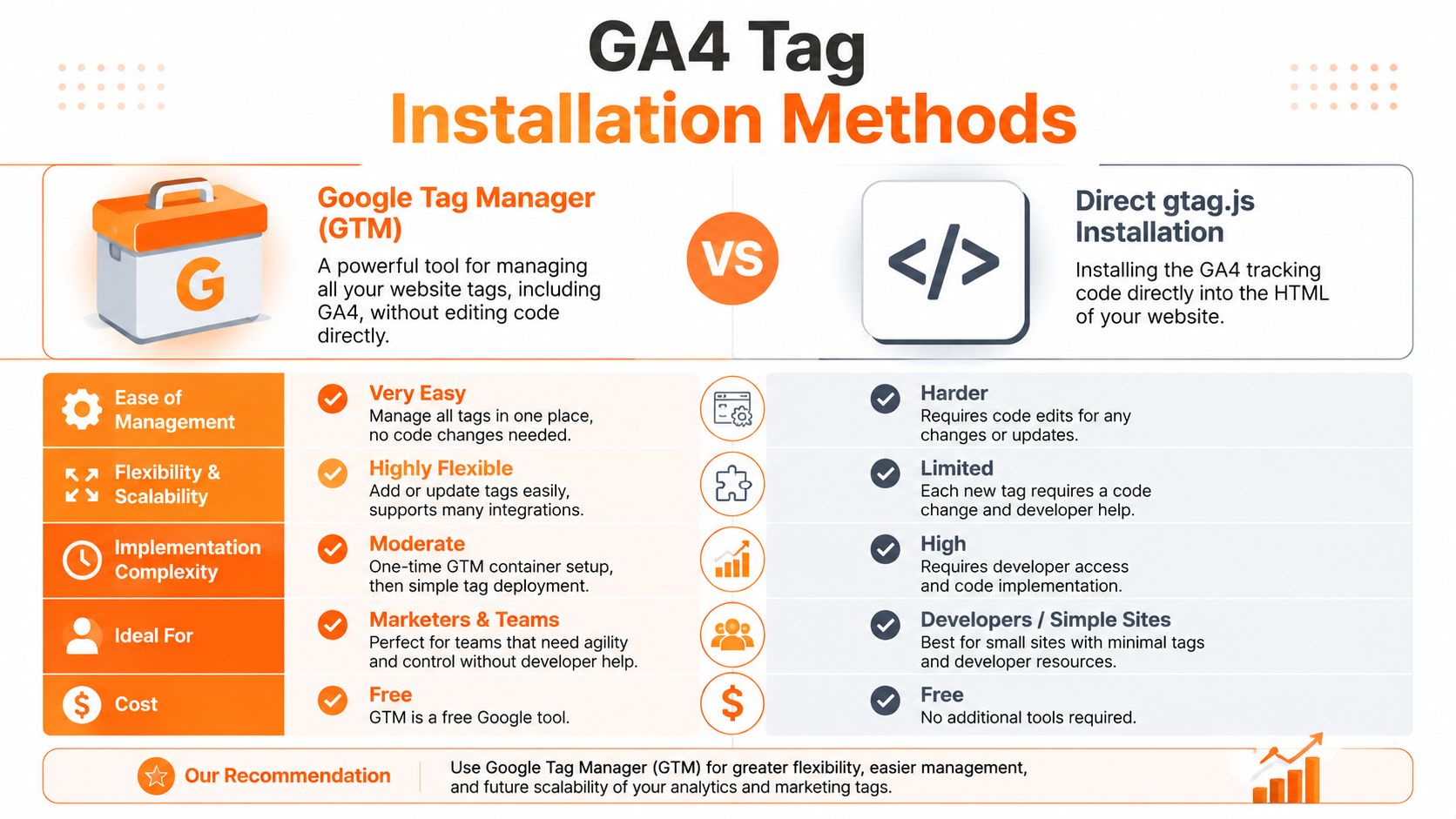
You've got two clean ways to install the tag. I'd pick the one that matches how you already manage your site, because the wrong path creates more friction than it solves. GA4 can run through Google Tag Manager (GTM) or through a direct gtag.js install, and both send events into the same Measurement ID.
GTM when you want room to grow
If you already use GTM, create a new tag, choose the Google tag type, paste in your Measurement ID, and set the trigger to fire on all pages. GTM works well when you expect to add more tags later, like ads pixels or custom events, because you can manage changes in one place Semrush GA4 setup guide. It feels like a control panel, one switchboard instead of a pile of loose wires.
gtag.js when you want the direct route
If you want the simplest install, paste the GA4 snippet straight into your site's HTML head. That direct route keeps the setup lean, and it suits founders who just want page tracking live fast. The main tradeoff is flexibility. If you later need more tags or more testing control, you'll usually end up moving that setup into GTM.
Verify the install before you trust it
No matter which route you choose, check Realtime right after the tag goes live. GA4 setup guides also tell beginners to verify data flow before moving on to conversions or integrations MonsterInsights beginner guide. That step matters because a tag that sits in code but never fires is just decoration.
Founder check: if Realtime stays empty, I look at the tag trigger first, then the Measurement ID, then any consent banner that might block the hit.
If you want a concrete walkthrough of the GTM side, the embedded guide below is a good visual aid.
Event and Conversion Tracking
GA4 is event-based, so I read it like a receipt printer. Each action prints a line, and those lines tell me what people did on the site Neil Patel's Google Analytics overview. For founders, that's the useful shift. You stop asking only who visited, and start asking what they did, what they ignored, and which action led to revenue.
Pick the actions that matter first
For early-stage brands, I'd start with three events, a lead form submission, a purchase completion, and a user signup. Use names that are easy to read later, and keep the pattern consistent. If you make the names messy now, your reports turn into a drawer full of tangled cables.
| Event Name | Description | Parameter Examples |
|---|---|---|
| lead_form_submit | A visitor sends a contact or demo form | form_name, page_location |
| purchase | A buyer completes checkout | transaction_id, value, currency |
| sign_up | A visitor creates an account | plan_name, signup_source |
Mark the important ones as key events
GA4 lets you treat important events as key events, which used to be called conversions Google Analytics beginner guide. That label matters because not every event deserves the same weight. A product view can be useful, but a checkout completion tells you more about business outcomes.
For beginners, the most useful rule is to review Traffic acquisition, Landing pages, and Conversions together, then compare channel volume against key events instead of users alone Brillmark GA4 beginner guide. High traffic can still perform badly. Low traffic can still produce the strongest outcomes.
Keep naming clean and test it
If you're tracking a deeper flow, keep the naming tight. Use one event for one action, and attach useful parameters only when they help you sort behavior later. The comprehensive guide to visitor tracking is a solid extra read if you want a wider view of how tracking logic fits together.
Use DebugView before you trust any new event. If I can click the action and see the event fire there, I know the setup works before I rely on the report.
Integrating Search Console and Google Ads
Your core numbers get better when you connect the tools that already know where traffic comes from. GA4 can show organic and paid traffic, but linking Search Console and Google Ads gives you cleaner source-level context inside the same property. That way, you don't have to jump between tabs just to see which channel brought the visit.
Link Search Console from the admin area
In GA4, go to Admin, then Product links, then Search Console links, and click Link. Pick the Search Console property that matches your site, confirm it, then attach the web data stream. After that, go to Reports, then Library, publish the Search Console collection, and the reports appear in the left nav.
That link gives you query-level and landing-page-level views for organic search, which helps when you're trying to tell which page attracts the right searchers. It also helps when you want to compare search intent against the page people land on.
Link Google Ads the same way
For paid traffic, go to Admin, then Product links, then Google Ads links, and connect the ad account. Once the link processes, your GA4 key events can flow into Google Ads as conversion actions, and your Ads data can show up in GA4 acquisition reports. If you run campaigns, that connection keeps your paid reporting and site behavior in one place.
If you want a deeper planning lens for paid campaigns, I'd pair this with Chicago Brandstarters' PPC advertising strategies.
Read the signs without overcomplicating it
The standard metrics you'll keep seeing are users, new users, sessions, page views, bounce rate, and average session duration Jimdo beginner metrics guide. Beginner guides also note that the first screen often defaults to the past 7 days, which makes it easier to compare traffic trends over time Jimdo beginner metrics guide.
If a paid channel sends lots of visits but very few key events, I don't praise the traffic. I ask whether the landing page mismatched the ad or the audience was off.
Building Essential Reports and Dashboards
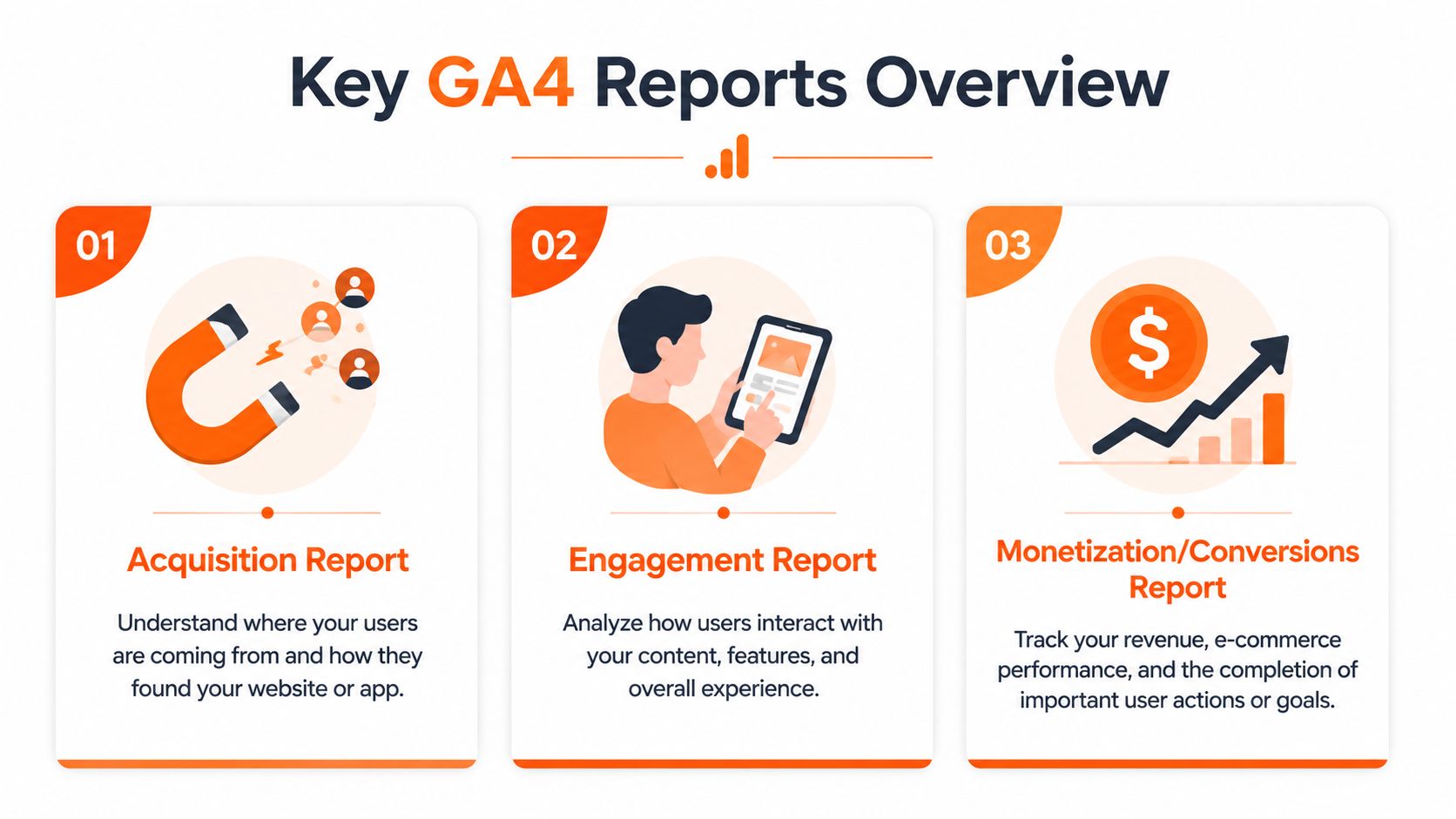
Once your data flows, I'd stop living in the default homepage and build a few reports you'll use every week. GA4 keeps most of the useful work inside Acquisition, Engagement, and Monetization or Conversions, so that's where I'd focus first. Visualize this as setting up three dials on a dashboard, one for arrival, one for behavior, one for outcome.
Build the three reports that answer real questions
The classic beginner buckets are Audience for who visits, Acquisition for how people arrive, and Behavior for what they do on the site YouTube beginner GA tutorial. In GA4, I'd translate that into Acquisition, Engagement, and the report area that shows conversions or monetization. It's the same idea with newer labels.
Acquisition tells you where people came from. Engagement tells you what they clicked, viewed, and ignored. Conversions tell you whether the visit mattered.
Clean up the view so it stays readable
Add comparisons when you want to see one channel against another. Narrow the date range when you need a quick check on a campaign or launch. Then pin the charts you use most so you can return to them without hunting through menus. That saves time when you need to brief a partner, advisor, or teammate.
If you want a methodical way to read those numbers, I'd keep Chicago Brandstarters' sales data analysis page nearby while you compare traffic, engagement, and outcomes.
Use bounce rate as a clue, not a verdict
If you're trying to understand why a page underperforms, a clear explanation of bounce rate helps. The Surnex guide to bounce rate is a useful companion for that topic, especially when you're looking at a landing page that attracts visits but not action.
I like to keep one dashboard for weekly review and one report set for deeper digging. That keeps me out of random report wandering.
Conclusion and Next Steps
You've got the core pieces in place now, a GA4 property, a working tag, tracked events, linked integrations, and a dashboard you can open without feeling lost. The next job is to keep the setup clean. That means watching for misnamed events, false conversions, and unverified code, because each one can make the reports look more certain than they are.
I'd stick to a short weekly habit. Open Realtime first, then review the traffic sources next to your key events, then check whether any filter changed the story. If you use internal traffic filters, confirm that your own visits aren't polluting the numbers. If something looks off, don't guess, test it in DebugView.
A few simple habits keep GA4 useful. Compare channel volume against conversions, not just visits. Watch for gaps between what you launched and what Realtime shows. Audit your event names before you add more tracking, because a messy naming system gets harder to clean up later.
Once that feels stable, you can add custom audiences, deeper funnels, and more precise ecommerce or lead tracking. You don't need everything at once. You just need a setup that answers the next question you plan to ask.
A CTA for Chicago Brandstarters. If you're building a brand in Chicago or the Midwest and you want real founder feedback while you set up GA4, join the community and bring your questions to the next dinner.
Leave a Reply